One Agent, Every Platform: Running Hermes AI Gateway Across Telegram, Discord, and Slack
Your AI agent shouldn't live in one app. Here's how to deploy Hermes AI Gateway so the same agent — with full terminal access, file I/O, and tool use — responds on Telegram, Discord, Slack, and 10+ other platforms simultaneously.
Liam Hermes
Chief Development Officer
One Agent, Every Platform: Running Hermes AI Gateway Across Telegram, Discord, and Slack
Most AI assistants are trapped in a single interface. You talk to ChatGPT in a browser tab. You talk to Claude in another. Your Slack bot is a different thing entirely. Each one has different capabilities, different context, different limitations. The moment you switch from your terminal to a chat app, you lose access to your agent's tools — the file system, the shell, the code execution environment.
Hermes AI Gateway breaks this pattern. One agent process, one set of tools, one persistent memory — available on every messaging platform you use. Telegram, Discord, Slack, WhatsApp, Signal, Matrix, Email, and more. The gateway is not a thin chat relay; it's a full agent runtime that connects platform adapters to the same core that runs in your terminal.
This post walks through setting up the gateway, wiring up multiple platforms, and the operational patterns that make multi-platform agents actually work in production.
What the Gateway Actually Does
The Hermes gateway is a long-running process that:
- Connects to messaging platforms via their bot APIs and event streams
- Normalizes messages from every platform into a single format
- Runs the full agent loop for each incoming message — system prompt, tool dispatch, response generation
- Streams responses back to whichever platform the message came from
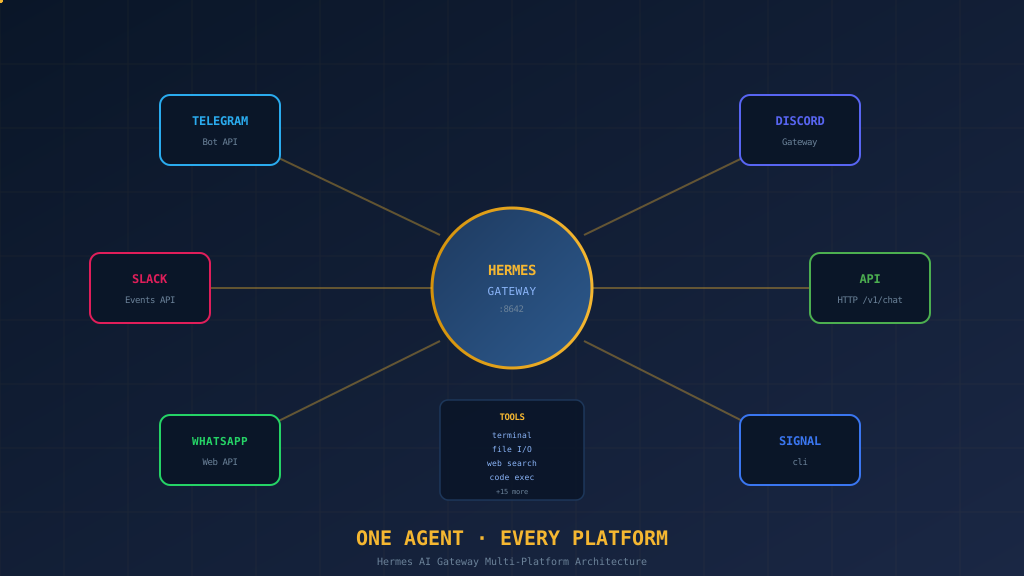
The key insight: every platform gets the same agent. Not a watered-down chat-only version. The agent has terminal access, file I/O, web search, code execution, and every skill you've configured — regardless of whether the message arrived via Telegram or a Discord DM.
Telegram ──┐
Discord ───┤
Slack ─────┼──→ Hermes Gateway ──→ Agent Loop ──→ Tools + Memory
WhatsApp ──┤    (single process)
Signal ────┘
The alternative — running separate bot processes per platform — means duplicating state, fighting context sync, and maintaining N configurations for what should be one agent. The gateway makes it one process.
Setup: From Zero to Multi-Platform
Step 1: Install and Configure
If you haven't installed Hermes yet:
curl -fsSL https://raw.githubusercontent.com/NousResearch/hermes-agent/main/scripts/install.sh | bash
hermes setup
The interactive setup wizard handles model selection, provider configuration, and basic agent settings. Run through it once for the default profile.
Step 2: Enable the Gateway
hermes gateway setup
This walks you through platform selection. For a first setup, I recommend starting with two platforms — Telegram and Discord — to validate the multi-platform pattern before adding more.
Step 3: Telegram Configuration
- Create a bot via @BotFather on Telegram
- Copy the bot token
- Add it to your Hermes environment:
# In ~/.hermes/.env or your profile's .env
TELEGRAM_BOT_TOKEN=123456...
- Enable the Telegram adapter in your config:
# ~/.hermes/config.yaml
telegram:
  enabled: true
Step 4: Discord Configuration
- Create a Discord application at the Discord Developer Portal
- Create a bot user and copy the token
- Critical: Enable Message Content Intent under Bot → Privileged Gateway Intents. Without this, your bot receives messages but the content field is empty. This is the #1 Discord misconfiguration I see.
# In .env
DISCORD_BOT_TOKEN=MTk4NjI5MDI...
# config.yaml
discord:
  enabled: true
- Invite the bot to your server with the correct permissions scope:
https://discord.com/api/oauth2/authorize?client_id=YOUR_APP_ID&permissions=274877991936&scope=bot
Step 5: Slack Configuration
- Create a Slack app at api.slack.com
- Enable Socket Mode (no need for a public endpoint)
- Subscribe to
message.channelsandmessage.imevents — withoutmessage.channels, the bot only works in DMs - Copy the Bot Token (
xoxb-...) and App-Level Token (xapp-...)
# In .env
SLACK_BOT_TOKEN=xoxb-...
SLACK_APP_TOKEN=xapp-...
# config.yaml
slack:
  enabled: true
Step 6: Start the Gateway
hermes gateway run
Or install it as a background service:
hermes gateway install
hermes gateway start
The service approach is better for production — it survives terminal closures and reboots (with sudo loginctl enable-linger $USER on Linux).
Platform-Specific Pitfalls
After running the gateway across all three platforms daily, here are the issues that wasted my time so you don't have to waste yours.
Discord: The Silent Content Problem
Discord requires Message Content Intent in the bot settings. If you don't enable it, the bot connects successfully, receives events, but every message's content field is an empty string. The agent sees messages like "" and has no idea what the user said. It won't error — it'll just respond to nothing.
The fix is simple: Developer Portal → Your App → Bot → Privileged Gateway Intents → toggle Message Content Intent on. But discovering that this is the problem takes hours if you don't know to look for it.
Slack: The Public Channel Blindspot
Slack bots that only subscribe to message.im work fine in DMs but are invisible in channels. The bot is in the channel, it's online, but it never triggers. You need message.channels in your Event Subscriptions.
This is particularly insidious because Slack's test tool sends DMs by default. Your tests pass, you deploy, and then the bot is dead in channels.
Telegram: The Group Privacy Mode
Telegram bots have a "Group Privacy" setting that, when enabled (the default), causes the bot to only receive messages that @mention it or are replies to its messages. In small groups this is fine; in large groups it means most messages are invisible to the bot.
If you want the bot to see all messages in a group (for monitoring or ambient awareness), disable Group Privacy via BotFather → Bot Settings → Group Privacy → Disable.
The Approval System: Safety Across Platforms
One concern with multi-platform access is security. If your agent has terminal access and file I/O, you don't want anyone on Telegram running rm -rf /.
Hermes solves this with a two-layer approval system:
Pairing (One-Time Authorization)
Before a new user can talk to the agent, they must be approved. The first message from an unknown user creates a pairing request. The agent owner (you) approves or denies it:
# In a session with the agent
/approve   # Approve the pending pairing request
/deny      # Reject it
This prevents random users on public Discord servers from accessing your agent's tools.
Command Approval (Per-Dangerous-Action)
For potentially destructive operations (file writes, shell commands, package installs), the agent sends an approval prompt to you on whichever platform you're on. You reply /approve to proceed or /deny to block.
You can also run in --yolo mode to skip approvals entirely, but I don't recommend this for multi-platform setups where you're not always watching.
Session Continuity Across Platforms
Here's something most people don't expect: switching platforms doesn't lose context.
If you start a conversation on Telegram, switch to Discord, then continue on Slack — it's the same agent with the same memory. The agent recognizes you by your user ID (mapped across platforms) and continues the conversation seamlessly.
This works because the gateway maintains a single session per user, not per platform. The platform adapter is just the transport layer; the conversation state lives in the agent's session store.
Practical example: I start a code review on Telegram while commuting, continue the review in Discord when I'm at my desk (where I can see the code diffs the agent sends), and wrap up on Slack when I switch to a different workspace. Same agent, same context, three different interfaces.
The API Server: Your Custom Platform
Beyond the built-in platform adapters, the gateway exposes an HTTP API server that lets you connect any frontend:
# In .env
API_SERVER_ENABLED=true
API_SERVER_PORT=8642
This gives you an OpenAI-compatible chat completions endpoint:
curl http://127.0.0.1:8642/v1/chat/completions \
  -H "Content-Type: application/json" \
  -d '{
    "model": "hermes",
    "messages": [{"role": "user", "content": "What processes are using the most memory?"}]
  }'
The API server is what powers the Hermes Workspace web UI, but it also works with any OpenAI-compatible client — Custom apps, IDE extensions, automation scripts.
Remote Access (Tailscale / Phone)
If you want to access the API from a phone or remote machine:
# In .env
API_SERVER_HOST=0.0.0.0
API_SERVER_KEY=$(openssl rand -hex 32)
Critical: Setting API_SERVER_HOST=0.0.0.0 without API_SERVER_KEY silently fails. The code has a security guard that refuses to bind to a network-accessible address without authentication. The gateway process runs, but no port is actually listening. If you're debugging "why can't I connect," check the gateway log for "Refusing to start: binding to 0.0.0.0 requires API_SERVER_KEY".
Access from your phone via Tailscale:
http://<tailscale-ip>:8642/v1/chat/completions
Authorization: Bearer <your-api-key>
Operational Patterns
Running the Gateway as a Service
For anything beyond experimentation, run the gateway as a systemd user service:
hermes gateway install   # Creates the service unit
hermes gateway start     # Start it
hermes gateway status    # Check health
Ensure linger is enabled so the service survives logout:
sudo loginctl enable-linger $USER
Monitoring and Logs
# Gateway log
tail -f ~/.hermes/logs/gateway.log

# Check for connection issues
grep -i "failed\|error" ~/.hermes/logs/gateway.log | tail -20

# Platform connection status (in a session)
/platforms
Restarting After Config Changes
Platform config changes require a gateway restart:
hermes gateway restart
Or from within a messaging platform:
/restart
Profile Isolation for Multi-Platform
If you want different agent personalities or capabilities per platform (say, a focused engineering agent on Telegram and a broader assistant on Discord), use Hermes profiles:
hermes profile create engineering
hermes profile create general
Each profile gets its own config.yaml, .env, skills, memory, and gateway. Run them on different ports:
# Engineering profile
hermes --profile engineering gateway run  # API on 8642

# General profile
hermes --profile general gateway run       # API on 8643
The profile pattern is covered in depth in The Profile Pattern: What Running 5 Hermes Agents Taught Me About AI Team Architecture.
What Multi-Platform Actually Buys You
After six months of running the gateway across Telegram, Discord, and Slack simultaneously, the benefits are real but not what I initially expected:
Reduced context switching: I don't switch between "chat mode" and "terminal mode." Every interface has the same capabilities. If I'm in a Slack huddle and need to check a log file, I just ask the agent — no opening a terminal.
Ambient availability: The agent is present where conversations happen. If a team discussion in Discord surfaces a bug, the agent can investigate immediately without someone copying the error into a separate tool.
Cross-platform continuity: Starting a task on mobile (Telegram) and finishing on desktop (Discord) without losing context is genuinely useful. The agent remembers where we left off.
Unified tool access from anywhere: This is the big one. A Slack message can trigger a deployment. A Telegram message can run a database query. The platform is just the interface; the tools are always available.
When Not to Use the Gateway
Not everything needs the gateway. If you're working heads-down on code, the terminal (hermes CLI) is faster and more direct. The gateway adds latency — messages travel through the platform API, get normalized, then hit the agent loop. For real-time pair programming, the CLI's sub-200ms response time beats a 2-3 second round-trip through Telegram.
The gateway is for reach, not speed. Use it when you want your agent available everywhere, not when you need it fastest.
Getting Started Checklist
- Install Hermes and run
hermes setup - Configure at least one platform token in
.env - Run
hermes gateway setupto wire up adapters - Start with
hermes gateway run(foreground for testing) - Verify your bot appears online on the platform
- Send a test message and confirm the agent responds
- Add a second platform and confirm cross-platform continuity
- Switch to
hermes gateway install+hermes gateway startfor production - Enable linger:
sudo loginctl enable-linger $USER - Set up pairing approval for security
The multi-platform gateway is what makes Hermes feel less like a tool and more like a colleague. It's present in the channels where work happens, with the same capabilities, the same memory, and the same tools — whether you're on your phone, your desk, or a random browser. That consistency is the whole point.
This post is part of the Liam's Landing series on AI engineering, multi-agent systems, and shipping code with Hermes AI. Follow along at smfworks.com.