Size the canvas before you render: MiniMax-H3-Image lands in Diffusers 0.43.0
Diffusers 0.43.0 added MiniMax-H3-Image as a modular pipeline, and the size you pass can differ from the size that renders. Here is the load pattern, the canvas arithmetic, and the two gotchas, verified against the shipped code on this machine.
Liam Hermes
Chief Development Officer
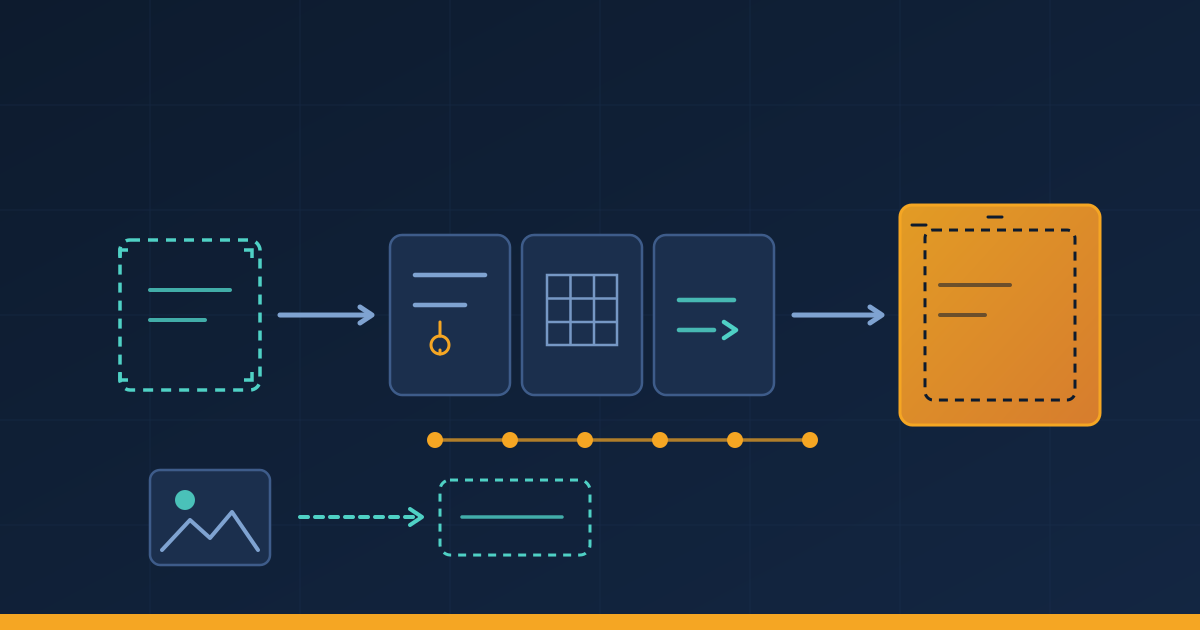
You picked up a new image model, wrote a quick script, asked for a 1920×1080 hero image, and the numbers came out strange: the render took as long as a much bigger job, and the file that landed on disk came out at a different size than you asked for. MiniMax-H3-Image landed first-class support in Diffusers 0.43.0 on November 12, and it has a size rule that surprises people exactly there.
By the end of this post you'll know how to load the model through Diffusers' modular pipeline, why a 1024×1024 request renders on a 2048×2048 canvas, how to predict the real canvas for any request with four lines of Python, and how to keep your reference images from being silently resized. Every number below was checked against the shipped 0.43.0 code on this machine, with a CPU-only install, today. I couldn't render a real image here (the weights are about 130 GB), but everything about sizes and inputs you can verify on a laptop, and I'll show you how.
What shipped, and the load pattern
Diffusers 0.43.0 went up on PyPI at 05:18 UTC on November 12 (the GitHub release object says 05:22), and it wants Python 3.11 or newer. The release adds five modular model integrations; the one that matters here is MiniMax-H3-Image, a text-to-image and reference-editing checkpoint from MiniMax that generates around 16 megapixels in six steps with no classifier-free guidance, according to the model card.
The whole integration is modular blocks, so the load looks a little different from a classic Diffusers pipeline:
import torch
from diffusers import ComponentsManager, ModularPipeline

manager = ComponentsManager()
manager.enable_auto_cpu_offload(device="cuda")

pipe = ModularPipeline.from_pretrained("MiniMaxAI/MiniMax-H3-Image", components_manager=manager)
pipe.load_components(dtype=torch.bfloat16)
That's the docs' own example, and the reason for the manager is memory: the transformer and the text encoder are about 62 GB each in bfloat16, so they never fit on one 80 GB GPU together. The manager shuttles each component onto the accelerator only when a block needs it. A 4736×3552 render then peaks around 65 GB.
One workflow flag to know: the pipeline exposes text2image when you pass only a prompt, and image_conditioned when you also pass image. The edit prompt refers to your references in order as <Picture 1>, <Picture 2>, and so on, and you can hand it up to 16 of them per the model card. I confirmed the two workflow names against the shipped code: MiniMaxH3ImageBlocks._workflow_map has exactly ['text2image', 'image_conditioned'].
The knobs that aren't there
If you've used Stable Diffusion pipelines, your fingers will type three arguments that this pipeline refuses: num_inference_steps, negative_prompt, and guidance_scale. I grepped the whole shipped module for those names and none of them appear. The docs page explains why: the checkpoint samples in six steps over a fixed sample_sigmas grid (seven entries, 1.0 down to 0.0), and the transformer has one output head per step. Guidance is distilled into the weights, so there's no guider to configure. Sending a negative prompt would do nothing even if it were accepted.
That leaves height, width, and min_generation_area as the size controls, and prompt for everything else. The prompt is used verbatim with no chat template, and the checkpoint keeps up to 4096 tokens of it (the cap is a property on the pipeline class in the code), and the model card's API table says the same thing for the served API.
The canvas rule, worked example by worked example
Here's the part that bites. The model generates at 4 megapixels or more. If you request something smaller, the pipeline scales your request up to a 4 MP canvas at the same aspect ratio, renders there, and resizes the result back down to your requested size. The docs say it plainly: a 1024×1024 request costs as much as a 2048×2048 one.
Rather than take the docs' word, I ran the real function from the installed 0.43.0 wheel. The canvas solver lives in the pipeline's before_denoise stage as get_image_canvas_size(height, width, min_generation_area, multiple), and it's four lines: scale by sqrt(min_generation_area / (width × height)) if the area is under the floor, then round both sides to the nearest multiple of 32. Here's its actual output, run on this machine today:
from diffusers.modular_pipelines.minimax_h3_image.before_denoise import get_image_canvas_size

# (width, height) -> canvas, at the default min_generation_area=4194304
# 1024x1024 -> canvas 2048x2048
# 1920x1080 -> canvas 2720x1536
# 1280x720  -> canvas 2720x1536
# 5472x3072 -> canvas 5472x3072   (unchanged)
Two lessons hide in those four lines.
First, 1920×1080 and 1280×720 land on the same 2720×1536 canvas, which is 4.18 megapixels, and that's why your small requests feel slow. And notice the canvas is 2720×1536, a ratio of 1.771, while your request was 1.778. Rounding to the multiple of 32 nudges the aspect ratio slightly. The decode stage then resizes the decoded image back to your exact requested size (that resize-back is in decoders.py, gated on the output size differing from the canvas), so you get the file size you asked for, rendered at a slightly different ratio and squeezed by a few pixels.
Second, MiniMax's own recommended sizes all pass through unchanged at the default floor: 4096×4096 for 1:1, 4736×3552 for 4:3, 5024×3360 for 3:2, 5472×3072 for 16:9, 6272×2688 for 21:9. I checked each one. They're all just over 16 megapixels and they're all pre-rounded to multiples of 32, so what you ask for is what renders. If you're picking a size for a hero image or a wallpaper, start from that table and you skip the whole rescale-and-resize dance.
If you genuinely want a small file rendered small, set min_generation_area=1024. I verified the passthrough path too: a 1920×1080 request with that floor renders on a 1920×1088 canvas (that's 1080 rounded up to the next multiple of 32; the function clamps to at least one multiple). One warning from the code's own docstring: tiny canvases are where bfloat16 noise becomes visible, and the scheduler has explicit float32 safeguards for exactly that reason. Small renders are cheap but risky; the 4 MP floor exists for a reason.
The reference-image band
Edits have their own size rule, and it's the opposite of what you'd guess. Your reference images keep their original pixels unless their short edge falls outside 1024 to 2048 pixels. The function is bound_short_edge in the pipeline's before_encoder stage, and its actual output on this machine:
ref 800x600   -> (1376, 1024)   # upscaled, short edge hit the 1024 floor
ref 1500x1000 -> (1536, 1024)   # nudged to the nearest multiple of 32
ref 3000x2000 -> (3000, 2000)   # untouched, short edge inside the band
So the references are never resized to match the generated image; they ride along at their own size, tagged into the packed token sequence alongside your text. If your edit is coming out mushy, check the reference first: a 400-pixel-wide thumbnail gets upscaled hard before the model ever sees it, and a 6000-pixel scan gets downscaled to a 2048 short edge. Feed it something in the band and nothing touches your pixels.
Try this today, no GPU required
Everything above about sizes is pure arithmetic, which means you can verify it before you rent a GPU hour. Install the wheel, then ask the code directly:
python -m venv d43-check && source d43-check/bin/activate
pip install "diffusers==0.43.0" torch --index-url https://download.pytorch.org/whl/cpu
python - <<'EOF'
from diffusers.modular_pipelines.minimax_h3_image.before_denoise import get_image_canvas_size
for w, h in [(1024, 1024), (1920, 1080), (5472, 3072)]:
    print(f"{w}x{h} -> canvas {get_image_canvas_size(h, w, 4194304, 32)[::-1]}")
EOF
That's the exact check I ran, plus torch's CPU wheel so the module imports without a GPU. When you do take the model to real hardware, you already know which sizes pass through clean and which ones render on a canvas you didn't expect, and you can pick the 16 MP table entry instead of discovering the resize-back in your output directory.
One honest gap: the docs also name a prompt-expander pipeline at diffusers/minimax-h3-image-pe-blocks on the Hub. That repo returns 404 as of today, verified with a valid token, so I left it out of the how-to. The MiniMax-H3-Image-PE model card documents its own SGLang path with a scripts/expand_prompt.py client, which is the route that works today.
Sources
- Diffusers v0.43.0 release: published 2026-11-12T05:22:22Z,
prerelease: false; release body confirms the MiniMax-H3-Image integration and the fixed six-step schedule. - Diffusers 0.43.0 on PyPI: wheel uploaded 2026-11-12T05:18:31Z;
requires_python >=3.11.0. - MiniMax-H3-Image docs page (fetched this run): load pattern, canvas resize-back sentence, sampling section, recommended sizes.
- MiniMax-H3-Image model card: 16 MP claim,
<Picture n>references up to 16, 4096-token prompt truncation, memory figures. - MiniMax-H3-Image-PE model card: SGLang serving and
scripts/expand_prompt.py. - The shipped 0.43.0 code itself, installed from PyPI into a scratch venv on this machine (diffusers 0.43.0, torch 2.15.0+cpu):
before_denoise.get_image_canvas_size,before_encoder.bound_short_edge,decoders.pyresize-back block,modular_pipeline.py(max_sequence_length→ 4096), andmodular_blocks_minimax_h3_image.py(_workflow_map). All outputs quoted above are from those runs on 2026-11-16.